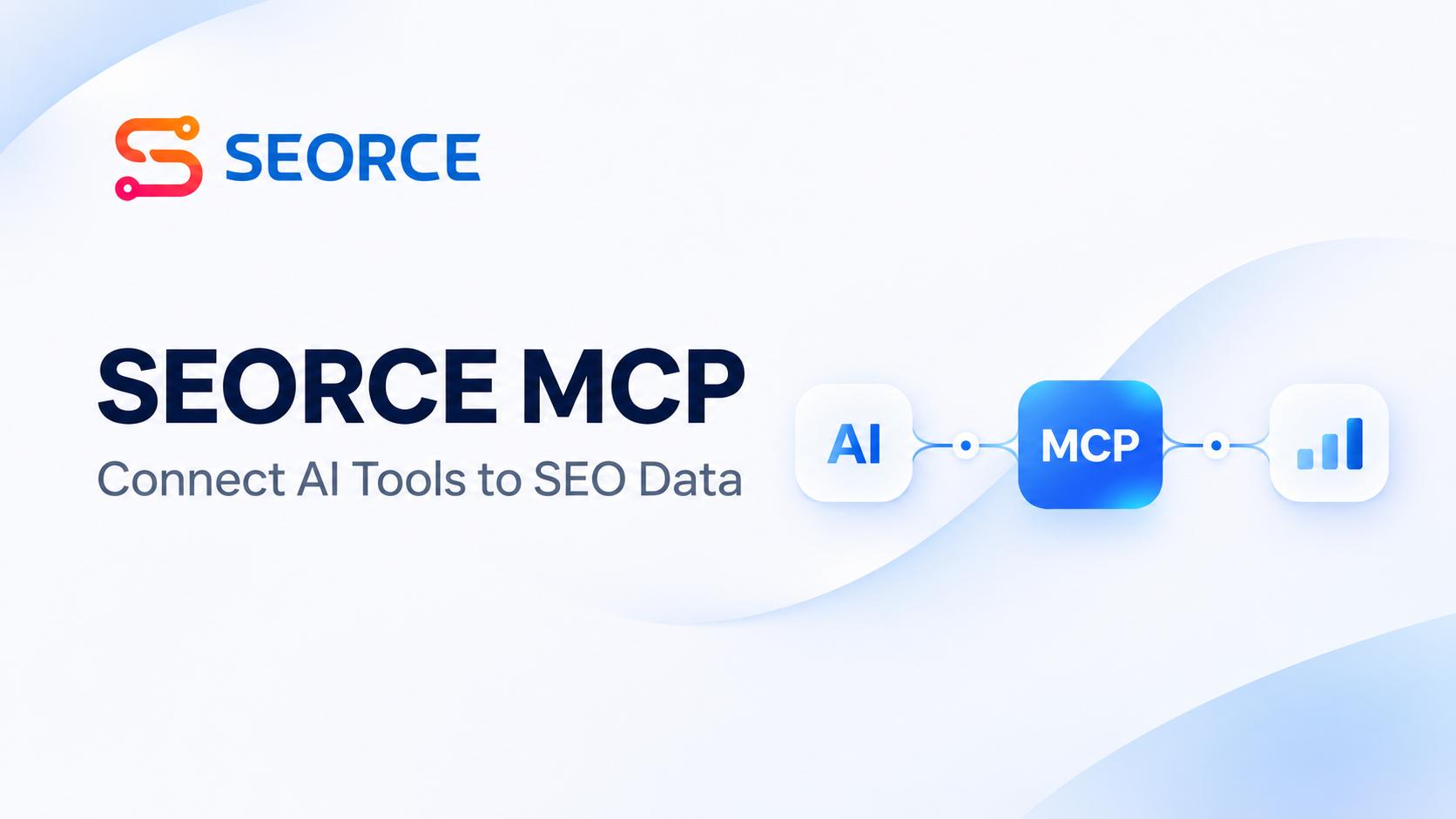

What if you could ask ChatGPT or Claude about your website's SEO performance and get answers based on your actual search data?
That's what SEORCE MCP helps you do.
It connects your SEORCE account to the AI tools you already use. Your assistant can then access your keywords, pages, rankings, and competitor information.
You can ask about traffic changes, find keyword opportunities, and review competitors. You can also investigate areas that need attention without manually checking multiple reports.
Here's how to set up MCP for SEO and use it with your search data.
What Is SEORCE MCP and How Does It Work?
SEORCE MCP is an SEO MCP server that connects your account to compatible AI applications through Model Context Protocol (MCP).
MCP is an open standard that allows AI tools to communicate with external systems. With SEORCE, these tools can access the search data available in your account.
This makes Model Context Protocol for SEO useful when you want to analyse search performance through an AI assistant.
SEORCE MCP works with any MCP-compatible AI agent. The following seven tools are among the most commonly used, and SEORCE provides setup instructions for each of them.
- ChatGPT
- Claude
- Cursor
- Claude Code
- VS Code
- Codex CLI
- Gemini CLI
All seven use the same MCP server URL.
https://mcp.seorce.com/mcp
Before connecting, you need a SEORCE account with your website added. You'll also need to connect to the Google Search Console.
Your search data becomes available after the initial synchronization finishes.
The connection is read-only. Your AI assistant can access projects associated with your SEORCE account. However, it cannot change your underlying data.
How to Use MCP for SEO Analysis
With SEORCE MCP, you can ask your AI assistant questions about your website's search performance.
The SEORCE MCP connection page includes 19 example prompts across five categories. These cover organic performance, keyword opportunities, traffic changes, content planning, and competitor analysis.
Here's how you can use them.
1. Analyse Website Rankings Using AI
Want to know how your website is performing in organic search?
Ask your AI assistant to summarize your search performance over the past 28 days. You can also request details about specific pages and keywords.
For example, ask about:
- Pages receiving the most organic clicks.
- Keywords ranking in the top 3, top 10, and top 20 positions.
- Traffic from branded searches compared with non-branded searches.
These prompts help you review the search performance data available through SEORCE.
2. Find SEO Opportunities Using AI
Some keywords may already be close to better ranking positions. You can ask your AI assistant to identify these opportunities.
For example, find keywords approaching Google's first page. Then ask which improvements deserve attention first.
You can also look for pages receiving many impressions but relatively few clicks. Your assistant can suggest alternative titles for those pages.
Another useful request is to identify five keywords with the easiest opportunities to reach the top three positions. Ask your assistant to explain each recommendation.
These suggestions can guide further analysis, although they don't guarantee higher rankings.
3. Investigate Traffic and Ranking Changes
When organic traffic changes, you need to understand which pages and keywords are affected.
You can start by comparing the last seven days with the previous week. Ask your AI assistant which pages lost clicks and what might explain those changes.
Other useful requests include:
- Finding keywords with the largest ranking drops over 28 days.
- Identifying your biggest ranking gains during the current month.
- Preparing a weekly SEO report with winners, losers, and recommended actions.
These prompts provide a starting point for investigating performance changes. You can then decide what needs further attention.
4. Use AI Agents for Keyword Research and Content Planning
Your existing search data can also help you explore content opportunities.
For example, ask your assistant to find queries where multiple pages compete against one another. Then request a recommendation about which page should take priority.
You can also explore questions people search for that your website could answer.
Another option is to review your best-performing page. Ask which keywords it ranks for and what might be missing.
Planning new content? You can ask what to write about next based on your search data.
These prompts help you explore content ideas using information already available in SEORCE.
5. Use MCP for Competitor Analysis
You can also use SEORCE MCP to investigate your competitors.
For example, ask which keywords your top competitor ranks for that your website doesn't.
You can explore other questions, including:
- Where do competitors outrank your website?
- Which competing keywords deserve attention?
- Which websites link to competitors but not to your domain?
- How does your backlink profile compare with your top competitor's?
These requests help you examine differences between your website and competing domains.
Important: Competitor questions use the competitors you've already added to SEORCE.
If your account contains multiple websites, specify which one you want to analyse.
How to Connect SEORCE MCP to Your AI Tools
Each supported application has a different setup process. Choose your preferred tool and follow the instructions below.
1. How to Connect ChatGPT to Google Search Console Data
You can use SEORCE MCP to access Google Search Console-backed data through ChatGPT.
First, make sure your website is connected to Google Search Console in SEORCE. Then follow these steps.
- Open Settings > Apps & Connectors > Advanced settings in ChatGPT.
- Enable “Developer mode”.
- Return to Apps & Connectors and click “Create”.
- Name the connector “SEORCE” and paste the MCP server URL.
- Select “OAuth” for authentication.
- Confirm that you trust the connector. Click “Create” and sign in with Google.
- Open a chat and click the + menu. Select “Developer mode” and enable SEORCE.
Once connected, you can ask ChatGPT questions about your search data.
Important: The SEORCE connection guide states that Developer mode requires a paid ChatGPT plan. Business and Enterprise workspaces also need administrator approval.
2. How to Connect Claude to SEO Data
You can connect Claude to your SEORCE account through its web or desktop application.
Follow these steps.
- Open Customize > Connectors in Claude.
- Click “+” and select “Add custom connector”.
- Name it “SEORCE” and paste the MCP server URL.
- Leave Advanced settings empty.
- Click “Add”, followed by “Connect”, and sign in with Google.
Once connected, Claude can access search data available through your SEORCE account.
If you're using Claude Team or Enterprise, an Owner must add the connector first. They can do this through Organization settings > Connectors. Individual members can then connect.
3. How to Connect SEORCE MCP to Cursor
Cursor provides an “Add to Cursor” option on the SEORCE connection page.
You can also configure the MCP server manually.
Add this configuration to ~/.cursor/mcp.json.
{
"mcpServers": {
"seorce": {
"url": "https://mcp.seorce.com/mcp"
}
}
}
Next, open Cursor Settings > MCP.
Find “seorce”, click “Connect”, and sign in with Google.
4. How to Connect SEORCE MCP to Claude Code
Claude Code supports the connection through a terminal command.
Run the following command:
claude mcp add --transport http seorce https://mcp.seorce.com/mcp
Next, launch Claude Code and enter /mcp.
Select “seorce”, choose “Authenticate”, and complete Google sign-in.
5. How to Connect SEORCE MCP to VS Code
You can connect SEORCE MCP to VS Code through its MCP configuration file.
Add the following to .vscode/mcp.json.
{
"servers": {
"seorce": {
"type": "http",
"url": "https://mcp.seorce.com/mcp"
}
}
}
Once you've added the configuration, click “Start” above the seorce entry.
Approve the sign-in request and continue with Google. Then open Copilot Chat in Agent mode to use the connection.
6. How to Connect SEORCE MCP to Codex CLI
Codex CLI requires two terminal commands.
First, add the MCP server.
codex mcp add seorce --url https://mcp.seorce.com/mcp
Then authenticate the connection.
codex mcp login seorce
Your browser will open for Google sign-in. Complete authentication to finish the setup.
7. How to Connect SEORCE MCP to Gemini CLI
Gemini CLI also supports SEORCE MCP through terminal commands.
Start by adding the server.
gemini mcp add --transport http --scope user seorce https://mcp.seorce.com/mcp
Next, launch Gemini CLI and enter this command.
/mcp auth seorce
Sign in with Google when prompted to complete the connection.
How to Fix Common SEORCE MCP Connection Issues
Having trouble connecting? SEORCE MCP provides troubleshooting steps for common problems.
1. Getting an "Account Not Found" Error
Make sure you're using the correct Google account. Its email address should match the one associated with your SEORCE account.
If you haven't registered yet, create an account before reconnecting.
2. Your AI Assistant Cannot Find Any Projects
Check whether you've added your website to SEORCE and connected Google Search Console.
Your search data becomes available once the initial synchronization finishes.
3. SEORCE Tools Aren't Appearing in Your Chat
Make sure the connector is enabled for the current conversation.
If you're using ChatGPT, check that Developer mode is also selected within the chat.
4. Can AI Tools Modify Your SEORCE Data?
No. Every SEORCE tool operates in read-only mode.
Your AI assistant can access projects belonging to your account. However, it cannot change the underlying data.
SEORCE doesn't display authentication tokens on its connection page. You complete the sign-in process through your chosen AI tool.
Get Started With SEORCE MCP
SEORCE MCP lets you work with your website's search data through familiar AI tools.
You can explore rankings, investigate traffic changes, identify keyword opportunities, and review competitors. Your assistant uses the information available in your SEORCE account to help answer these questions.
Ready to connect your AI assistant to your SEO data?
Visit SEORCE MCP, choose your preferred AI tool, and follow the connection instructions.
If you're new to SEORCE, create an account and add your website. Then connect Google Search Console to start exploring your search data.
Frequently Asked Questions About MCP for SEO
1. What Is MCP in AI?
MCP stands for Model Context Protocol. It's an open standard that lets AI applications communicate with external tools and data sources.
2. What Is an MCP Server?
An MCP server makes specific tools and data available to compatible AI applications. An MCP server for SEO, such as SEORCE MCP, provides access to search information from a connected account.
3. How Does Model Context Protocol Work?
MCP provides a standard way for AI applications to communicate with external systems. An AI application connects to an MCP server, discovers available tools, and requests information when needed.
4. Can ChatGPT Connect to an MCP Server?
Yes. ChatGPT supports MCP connections through its connector setup. You can add SEORCE MCP using Developer mode and OAuth authentication, as described in the official setup guide.
5. Can Claude Access Google Search Console Data?
Yes, through a compatible integration such as SEORCE MCP. Your website must first be connected to Google Search Console in SEORCE, with the initial data sync completed.
6. Can AI Agents Analyse SEO Performance?
Yes, when they have access to relevant search data. SEORCE MCP lets supported AI assistants examine available keywords, rankings, pages, and competitor information.
7. How Do I Connect an AI Agent to SEO Tools?
Choose a compatible AI application and configure its MCP connection. For SEORCE, add https://mcp.seorce.com/mcp and authenticate with Google. Then enable the connection in your chosen tool.
8. What Is the Difference Between MCP and an API?
An API allows software applications to exchange data or use services. MCP provides a standard way for AI applications to discover and interact with external tools. MCP servers can also use APIs behind the scenes.
9. Is MCP Secure?
MCP supports authentication and access controls, but security depends on the implementation. SEORCE MCP uses Google sign-in, limits access to your account's projects, and operates in read-only mode.
10. Can MCP Servers Access Live Website Data?
MCP servers can access current information when their connected data sources support it. However, data freshness varies. SEORCE MCP uses synchronized search data and doesn't promise real-time updates.